Configuration Task Procedure
The configuration task is required to create a connection between the client’s website and the ECDP.
Before you start
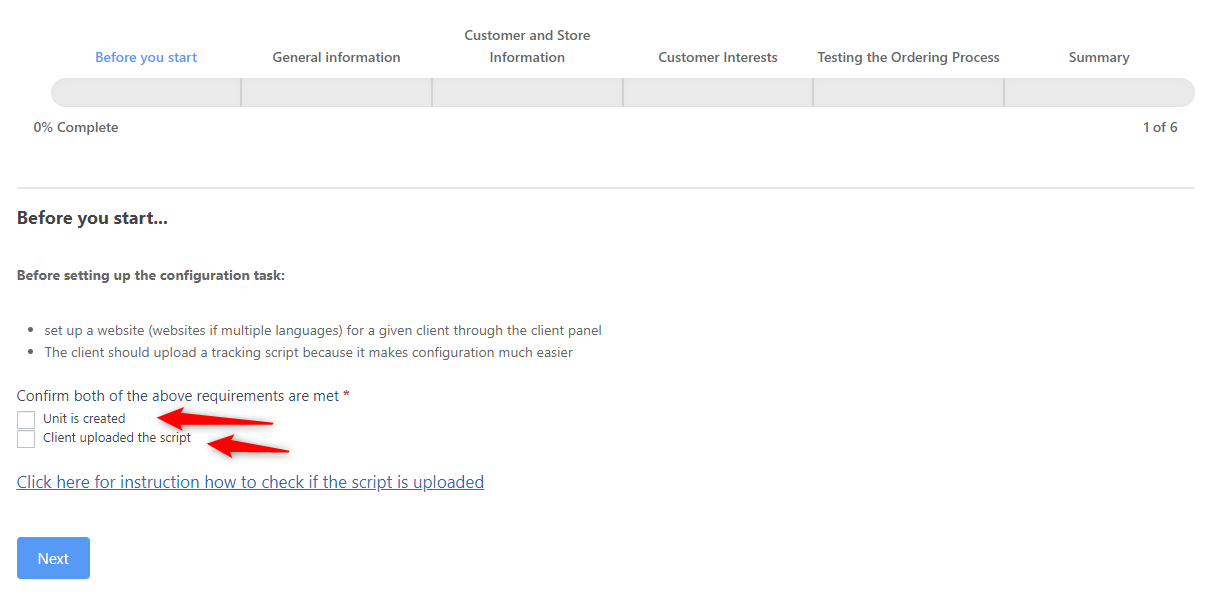
Before you start, make sure:
- The unit is created.
- The website is created.
- The client uploaded the ECDP’s tracking script.
Also, make sure you have gathered all the necessary information:
- Unit and website ID
- Website URL
- Link to the vetting task
- Store language(s) and currency(ies)
- What the customer is interested in
- How to place a test order
- Link to the product feed (optional but helpful)
Once you have gathered all the information, please reach out to the vetting form by CLICKING HERE.
Configuration form
- At the first step, please confirm by checking the necessary checkboxes that you’ve created the unit and the script is uploaded on the website.
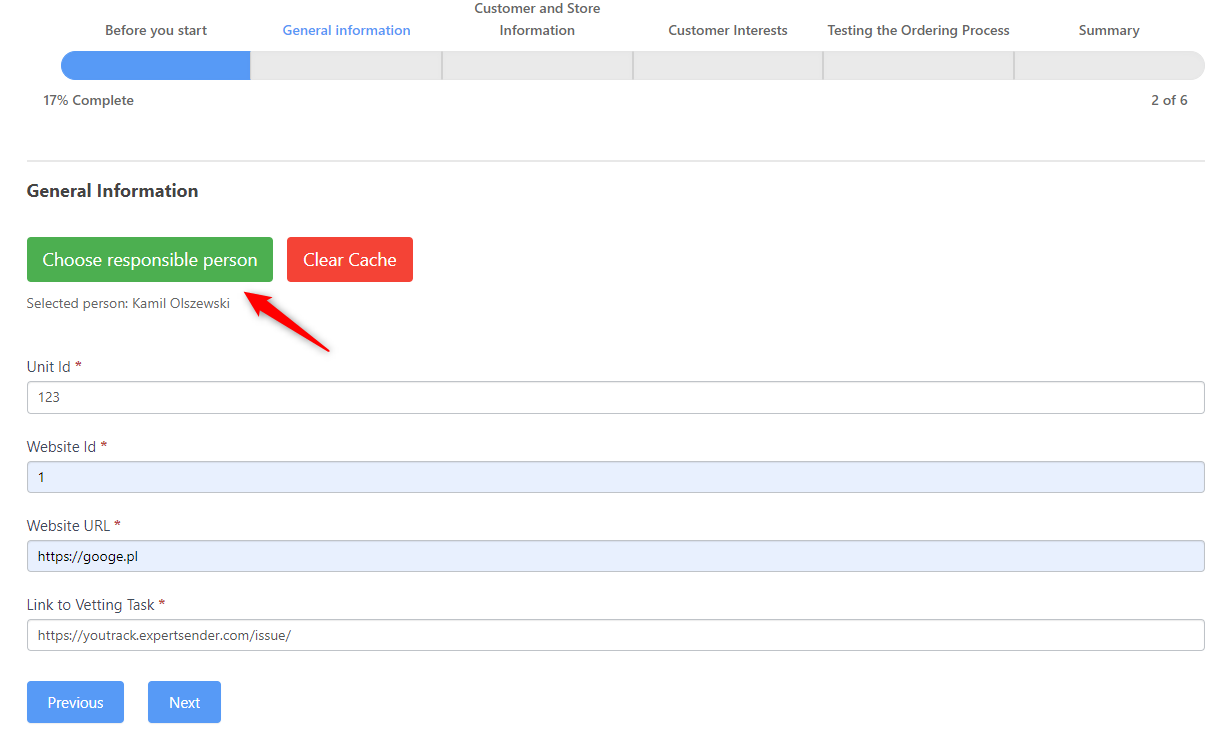
- Choose a person responsible for this client (and this task) and fill out the necessary information.
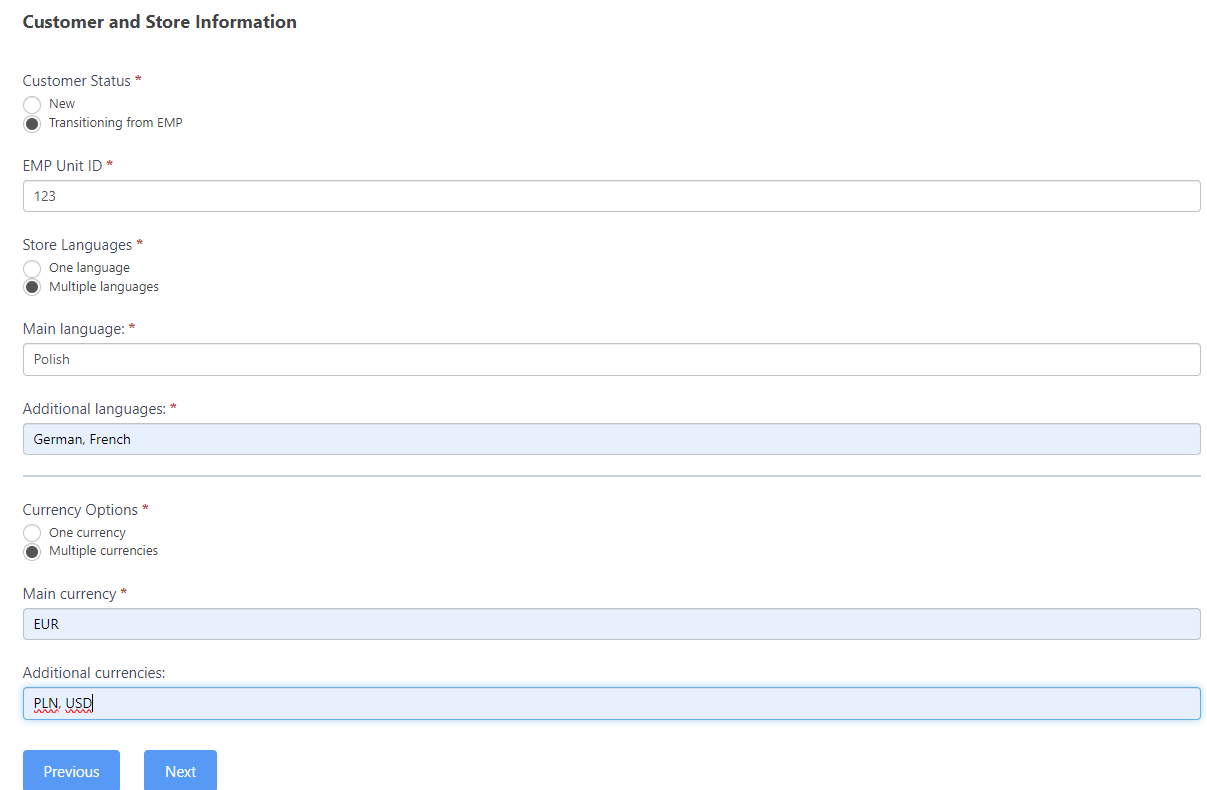
- Provide all the required information regarding the client and their website configuration. If it’s a transitioning client, provide the EMP unit ID. For stores with multiple languages or currencies, additional fields will appear. Fill these out, specifying the main language/currency and any additional ones.
- Select all the features the client is interested in. If you select Recommendations, make sure the client wants to start using it from the very beginning. Configuring this feature starts the billing period immediately. Make sure you attach a screenshot of the form.For scrapping forms, there are 2 types of scrapping:
Recognition only – We’ll use this form to recognize users for tracking purposes. Submitting a form would immediately recognize the user in the current session and merge the data we generated for this user when they were anonymous with the email address used for submission. This is useful for backward recognition or increasing the number of recognized users on the site. This feature does not add marketing consents in ECDCP!
Add to ECDP – This method is used to record marketing consents in the ECDP system. Used when the client has its own form on the site but it is not connected to ECDP. The tracking script then listens for the form, and when it is filled out, it enrolls users into ECDP with the selected consent. When selecting this option, provide the ID of the consent to be assigned and, in the case of DOI subscription mode, the ID of the message to confirm the subscription (otherwise the default is used).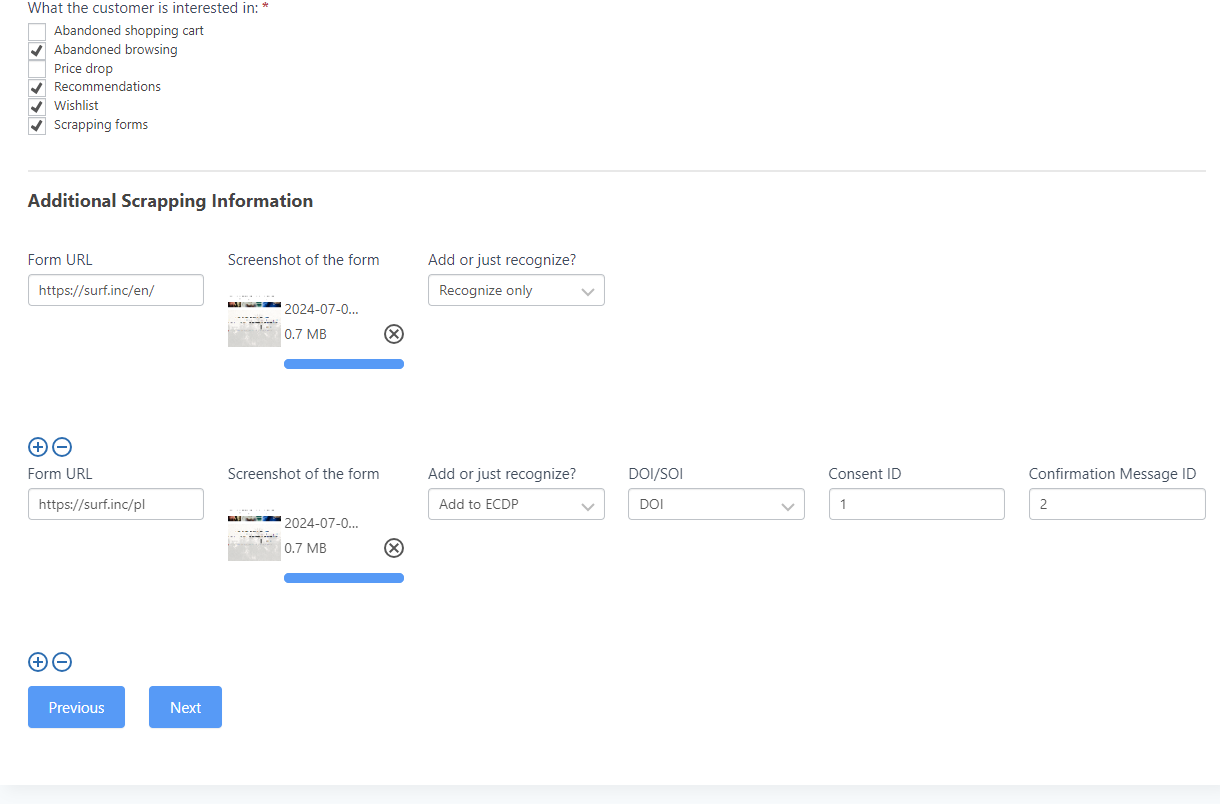
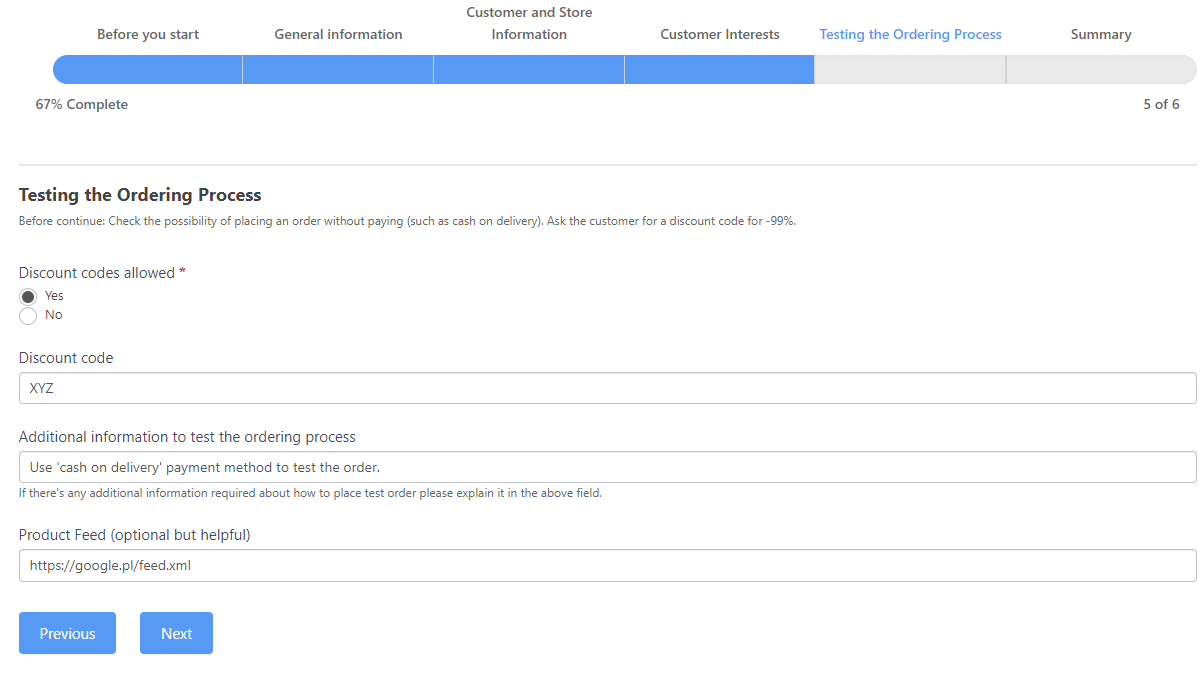
- To allow the IT team to test the order process, it is necessary to have a discount code for -99% or be able to place an order without paying (like the cash on delivery option). Specify whether it’s possible to use the discount code (and provide the code) or explain how to place the test order without paying. Having the product feed is optional at this stage.
- After clicking the “submit” button, the task will be created. You can find it in YouTrack on your tasks list or using this query: https://youtrack.expertsender.com/issues?q=%23configuration